Showing posts with label software. Show all posts

Tuesday, May 15, 2012

Tip #104: Circles -- How to Make Them

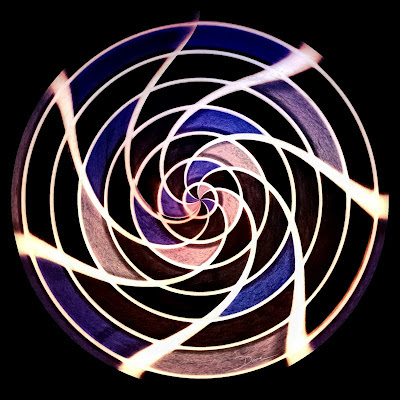
A new feature on my website is Circles. The technique has been around for a long time, but I had not played with it until just recently. Here's a quick sample.


Here's how I make them:
  1. I shoot ordinary subjects and look for colors that might work.
  2. I load the image into software that has Polar Coordinate filters, e.g. GIMP.
  3. I create a square crop.
  4. I convert the square crop to a circle with the Polar Coordinate filter.
  5. I apply the Whirl and Pinch filter or use iWarp or Liquify.

There you go. Let your eyes be the guide for the amount of pinch and whirl that you apply.

The example, above, was orginally a simple shot of small colored tiles with white grout.


[Back to the Main Site]

Wednesday, February 1, 2012

Tip #78: Moving Pictures

No photographer's repertoire is complete without knowing a little about video. Why? Well, your customers are going to expect it, plus the technology is almost universal. I have it on my phone; I have it on a video camera; I have it in my DSLR's; I have it on the web -- video is everywhere.

There are free video editors on both PC's and Mac's; there are shareware video editors; and there are packages to buy. The price range is almost as varied as the sources of video, themselves. I use a consumer suite from Pinnacle software. It handles many input formats and can create output in most of the popular formats, including full HD.

Be prepared for a fairly steep learning curve. Fortunately, the duration of the curve is not too long. The effort will be worth it.


[Back to the Main Site]

Tuesday, January 31, 2012

Tip #77: From the Seminar

Yesterday, I attended Scott Kelby's "Light It, Shoot It, Retouch It" seminar. Five hundred of us were taught and entertained by Scott and his staff, as Scott went through the steps in the different processes. I learned a good deal about setting up portrait sessions with live models, product shoots, and how to retouch each of the styles. The seminar was balanced between lighting arrangements and the use of Photoshop to retouch and produce the final images. I also learned about tethered shooting and why it is important in the studio -- a two inch screen on the back of a camera is just not large enough to make good lighting decisions. I can definitely recommend attending one of Scott's seminars, if you get the chance.

As with most seminars, there was an opportunity to hear about new products coming to the market to make photo editing chores less tedius. Two vendors jumped out at me. I recomend a visit to both companies' websites.


[Back to the Main Site]

Tuesday, December 20, 2011

Tip #35: iPhone Apps

Today's tip is about iPhone Apps. Yes, Virginia, I do shoot photos with my iPhone. With a little patience, images can be pretty good. The applications that run on iPhones range from toy camera apps to fairly nice editing apps. I own several, and until now, I had not counted them. Here goes.

  1. Camera+ ($.99) is my everyday app, replacing the default camera app. Camera+ takes a quick photo with independent focus and aperture placement. It also has many filters that change the appearance of the final photo.


  2. Pocket Light Meter (free) is the app that does just what is says. It serves as a reasonable light meter to assist with ISO, aperture, and shutter speed settings.

  3. PS Express (free) is Adobe's entry into the app world. It is nothing like the full blown Photoshop, except it does make image editing pretty simple.

  4. blueSLR (free) is a geo-tagging and remote control application. The app is free but the camera attaching GPS-dongle is an expensive add-on to a DSLR ($149).

  5. Picasa Web Mobile (free web app) is the mobile complement to the Picasa desktop software.

  6. Seadragon is an app that allows mobile viewing of Photosynth images. Unfortunately, the app is no longer available on the app store.

  7. Nikon Learn and Explore (free) is an app that serves up photography training modules.

  8. Square (free) is an app and a dongle that lets anyone collect credit card payments.

  9. Gorillacam (free) is another replacement for the default camera app. This app allows rapid fire photos and can be set up to take a photo anytime the iPhone screen is touched.

  10. Snapseed ($4.99) is Nik Software's photo editing app with filters that makes full use of the touch interface on the iPhone and iPad. This one is my favorite.

  11. Snap&Sketch ($.99) takes your photos and converts them into pencil, charcoal, or crayon sketches. I like this one, too.


I hope you give one or more of these a try.


Update 1/20/2012: Snapseed, the mobile photo app that I have crowed about, is now available for the Mac desktop and is coming to Windows in the near future. WOOT!


[Back to the Main Site]

Monday, November 28, 2011

Tip #13: What I Use

In previous posts I have written, generically, about photo editing software. In this tip I will describe the software that I use.

Since I shoot Nikon cameras in raw mode, I searched for software that would specifically work well with Nikon raw files. For full-screen viewing and basic edits, I use ViewNX 2. This software came with my camera and works with jpeg and raw file types. You can download it for free at Nikon.

The Nikon web site also recommended Capture NX 2 for more extensive edits. This software uses a remarkable technology from Nik Software, called upoint. During a photography trade show, I was introduced to other Nik software tools, namely Color Efex Pro, Silver Efex Pro, and HDR Efex Pro. I purchased each of these software packages and use them on a near daily basis. You can learn more at Nik Software.

For simple compositing tasks, I use an old copy of Paint Shop Pro. I have been using this software since my early web design days. There are newer versions, but I manage to get by with version 7, since it provides the capabilities that I use. [Update] I have upgraded to PSP X5. The user interface is vastly improved and memory management is much better. I needed the new functionality to handle the very large images that I typically edit. The old version would not correctly display the large files.

For panoramas, I use Microsoft ICE. This software is free and does an amazing job of stitching multiple images together. It handles lighting changes across the scene better than other paid-for packages that I have tried. You can find it at Microsoft.

Finally, I use Google's Picasa software for uploading family snapshots to web albums. Picasa also has bulk photo processing capabilities for tasks like resizing and adding a watermark to a collection of photos. You can download this free tool at Google.

[Update 2014] In January 2014, I began using Adobe Lightroom 5. Lightroom is now the first step in my digital workflow. It catalogs, it edits, it exports, and it allows publication in various formats. My other software integrates nicely within the workflow. With Lightroom, I can also automate repetitive tasks that were either disjoint or missing from the other software packages. I resisted for a long time; now I am a believer!


[Back to the Main Site]